What does memory pressure mean on a Mac?
Updated 7 October 2026
Memory pressure is macOS's own measure of whether you have enough memory for what's open. Green means you're fine, even if "Memory Used" looks high. Yellow means macOS is compressing memory to make room. Red means it's short and moving memory to disk (swap), which makes everything slower. It's in Activity Monitor's Memory tab.
Why "Memory Used" looks scary but isn't
macOS deliberately keeps memory full: unused memory is wasted memory. It keeps recently used files in memory (Cached Files) and gives that memory back the moment an app needs it. So a Mac with 15 GB of 16 GB "used" can be perfectly fine. Pressure is what tells you.
The parts of memory, in Activity Monitor's Memory tab
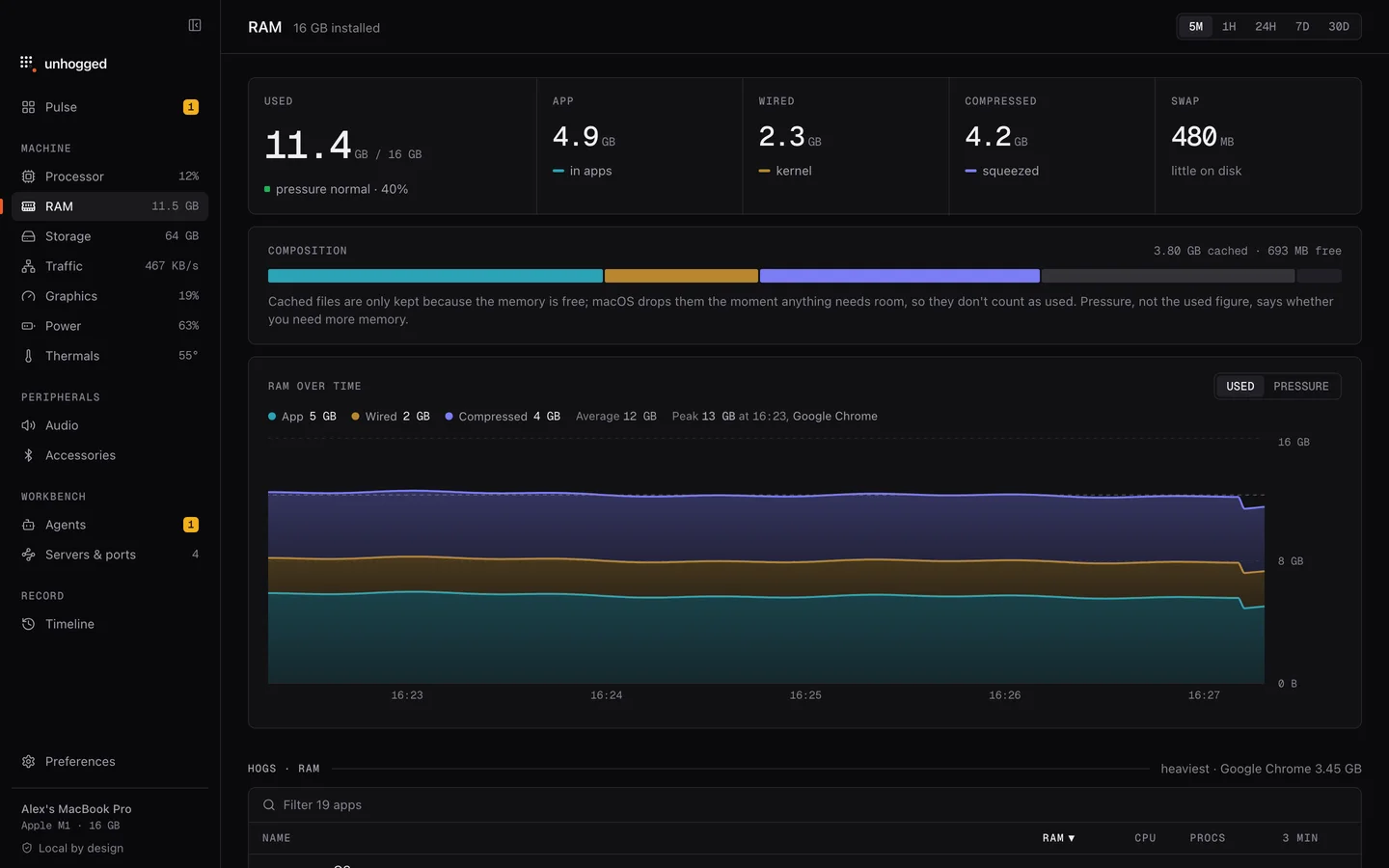
- App Memory: what apps are actually using.
- Wired Memory: memory macOS and its drivers keep for themselves. It can't be compressed or moved to disk.
- Compressed: memory macOS squeezed to make room instead of moving it to disk. Compression is quick; it's the first thing macOS does under pressure.
- Swap Used: memory moved to disk. A little is normal. Several gigabytes that keeps growing, with pressure yellow or red, means your Mac is short.
- Cached Files: recently used files kept around while memory is free; not a problem.
When pressure is yellow or red
- Sort by Memory and close what you don't need, starting at the top.
- Close browser tabs; each one holds memory (Chrome, Safari).
- Quit apps whose memory only ever grows; that's a leak, and restarting the app fixes it.
- Unload local AI models you're not using (ollama) and close forgotten coding sessions.
- If pressure is yellow or red every day with your normal apps, your work needs more memory than your Mac has. Apple silicon memory can't be upgraded, so plan for it in your next Mac.
Memory, explained as you go
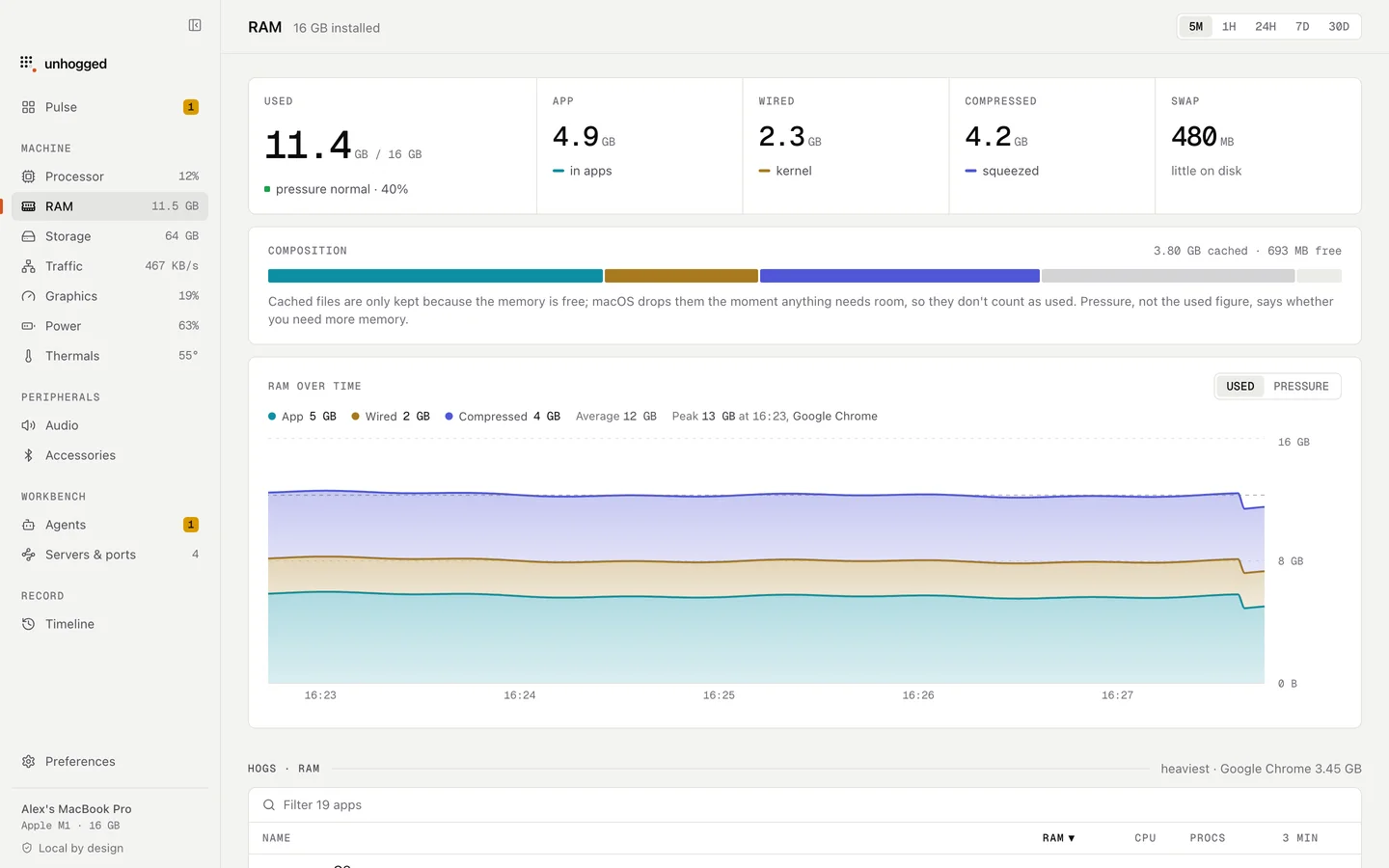
Unhogged's memory screen shows pressure in words, what your memory is made of and how it's changed over time, and the apps holding the most with every helper counted. It warns when an app's memory keeps climbing (a leak), with a button to restart it, and frees memory from things you're not using, showing what came back.
One payment, 3 Macs. macOS 13 Ventura or later on Apple silicon.
Questions
Is swap bad for my Mac's SSD?
Some swap is normal and modern SSDs handle it. Constant heavy swap means you're short of memory; fixing that is about speed more than wear.
How much memory do I need?
If pressure stays green with everything you normally have open, you have enough. Yellow or red every day means you need more.
Do memory cleaner apps help?
Not really. Forcing macOS to drop cached files just makes it read them again. Closing what holds the memory is what helps.
Related
- Why is my Mac slow?A Mac slows down for five reasons: memory, one busy app, heat, a full disk or background work. How to tell…
- kernel_taskmacOS itself. High CPU usually means it's holding the chip back to cool it.
- Google Chrome Helper (Renderer)One tab, window or extension of Google Chrome.
- MemorySee whether your Mac is short of memory, what it's made of, and which apps hold it, every helper counted.…