A Mac temperature monitor that tells you what it means
Updated 7 October 2026
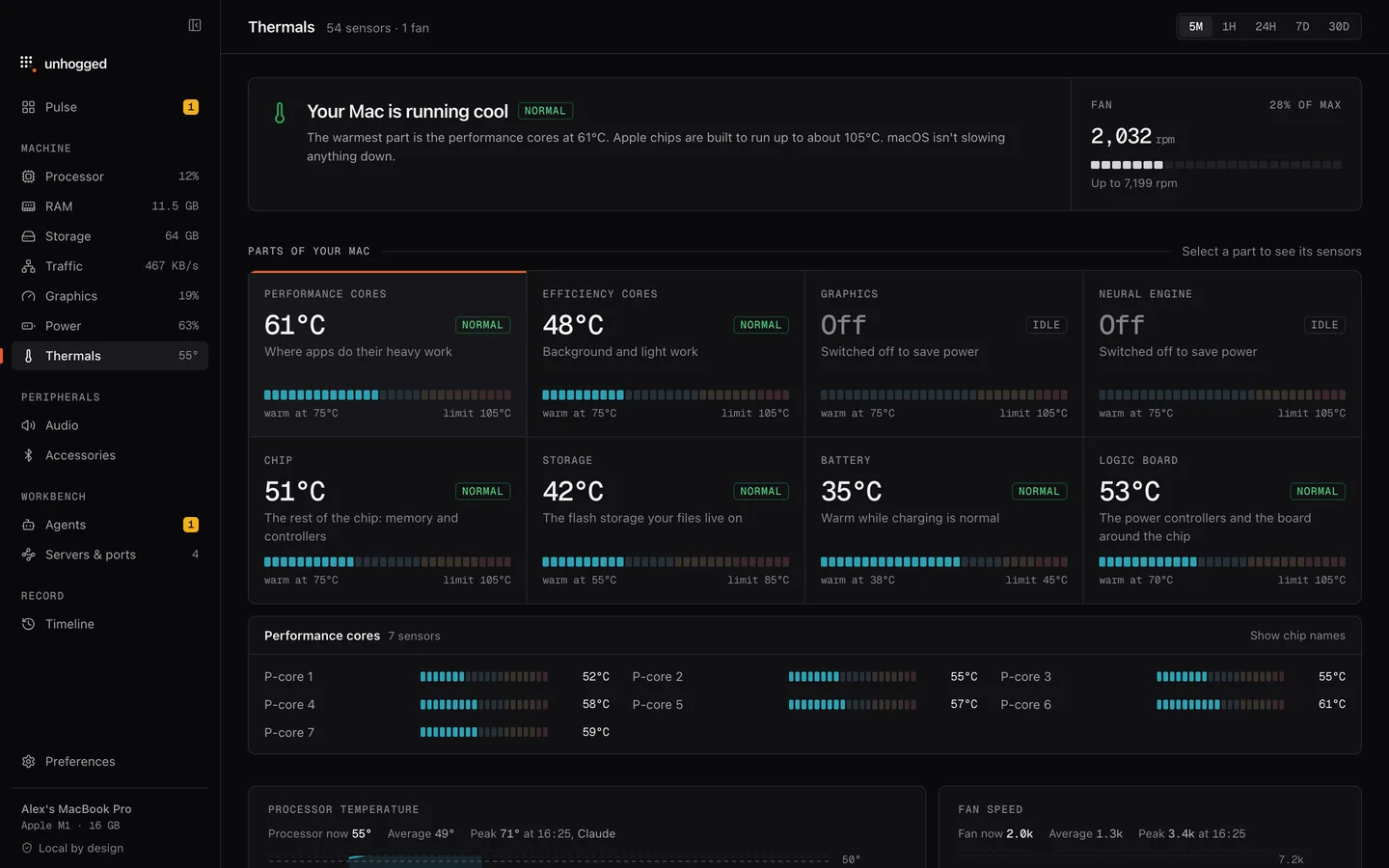
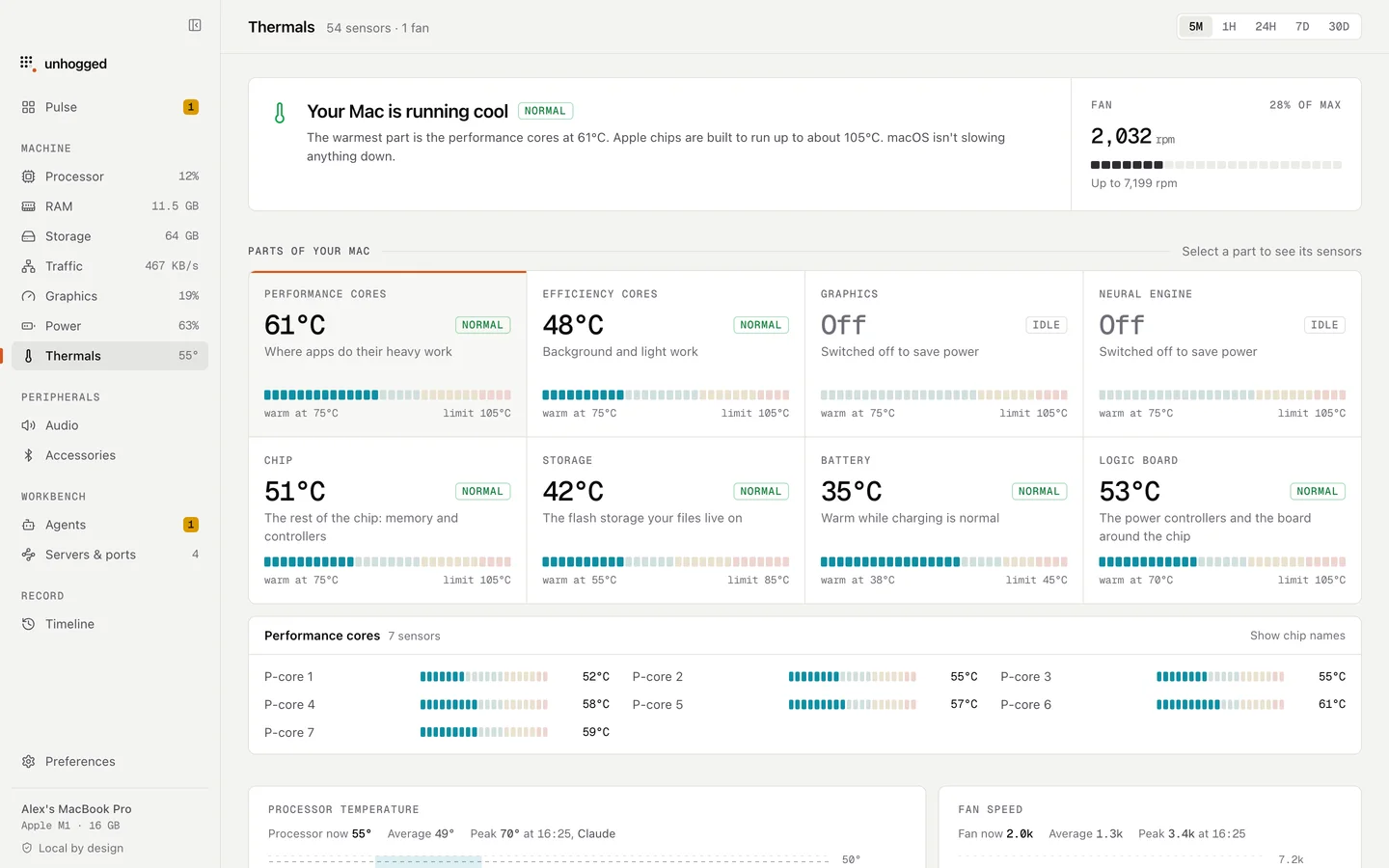
Most temperature monitors list dozens of sensors with names like PMU tdie4. Unhogged groups them into the parts of your Mac you'd recognise (performance cores, efficiency cores, graphics, Neural Engine, storage, battery, logic board), shows each against its own limit as Normal, Warm or Hot, and says in a sentence whether macOS is slowing your Mac down to cool it.
What you see
- A verdict: "Your Mac is running cool", or which part is hot and whether macOS is throttling.
- Every part, with its hottest reading, a Normal, Warm, Hot or Off state, and a bar from room temperature to its limit.
- Each part's sensors, named plainly (P-core 3, Battery sensor 2), with the chip's own names a click away.
- The fan: speed, or Off when it's silent.
- History: processor temperature and fan speed over time, with the app that was using the most at each moment.
Read straight from the chip's own sensors, with no helper to install and no admin password.
Why parts and limits, not sensors
A battery at 40°C is warm; a processor core at 40°C is cool. A single number means nothing without the part's limit, so Unhogged shows each part against its own. Parts that are switched off to save power show as Off rather than a misleading placeholder temperature.
Know why your Mac is hot
When it's hot, Unhogged finds the app responsible. $3.99 once for 3 Macs. Mac fan loud or running hot?
One payment, 3 Macs. macOS 13 Ventura or later on Apple silicon.
Questions
Does Unhogged work on Intel Macs?
Not yet: macOS 13 Ventura or later on Apple silicon.
Can it control the fan?
No. macOS manages fans; Unhogged shows the fan and finds what's making the heat.
Related
- Mac fan loud or running hotA hot Mac or a loud fan means something is working the chip hard. How to find the app responsible, what's…
- kernel_taskmacOS itself. High CPU usually means it's holding the chip back to cool it.
- Unhogged vs iStat MenusiStat Menus shows the most detail in your menu bar; Unhogged tells you what's wrong and fixes it. An…
- MemorySee whether your Mac is short of memory, what it's made of, and which apps hold it, every helper counted.…