What is coreaudiod, and why is it using so much CPU?
Part of macOS · safe to restart
coreaudiod is the macOS audio system: every sound your Mac plays or records passes through it. It's normally very light. High CPU usually comes from audio plug-ins, virtual audio devices installed by screen recorders and meeting apps, Bluetooth audio, or an app holding the audio system busy.
Why coreaudiod gets busy
coreaudiod does more work when:
- Virtual audio devices are installed (screen recorders, meeting apps, audio routing tools); each adds processing.
- Sound is processed per app, by volume mixers and effects tools, including Unhogged's own per-app volume while an app is turned down.
- Bluetooth headphones reconnect or switch between devices.
- An app keeps audio open even when silent.
How to check what it's doing
- Quit apps that play or record sound one at a time and watch coreaudiod in Activity Monitor.
- Open Audio MIDI Setup (in Applications › Utilities) to see every audio device, including virtual ones.
What to do
- Remove virtual audio devices you no longer use by uninstalling the app that added them.
- Disconnect and reconnect Bluetooth headphones.
- Restart the audio system with
sudo killall coreaudiodin Terminal. Sound stops for a second and macOS restarts it by itself.
With Unhogged
See what's slowing your Mac, in one sentence
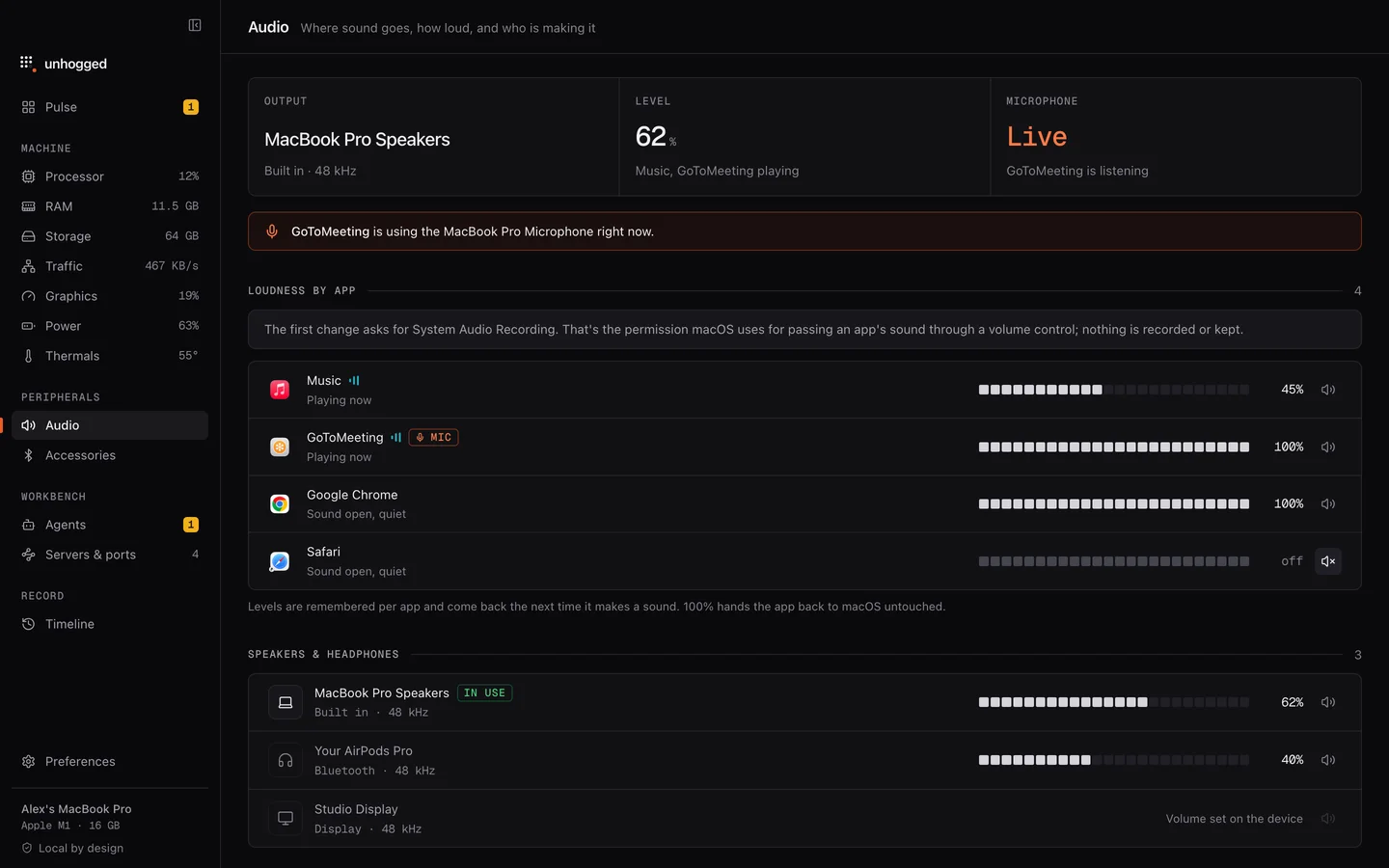
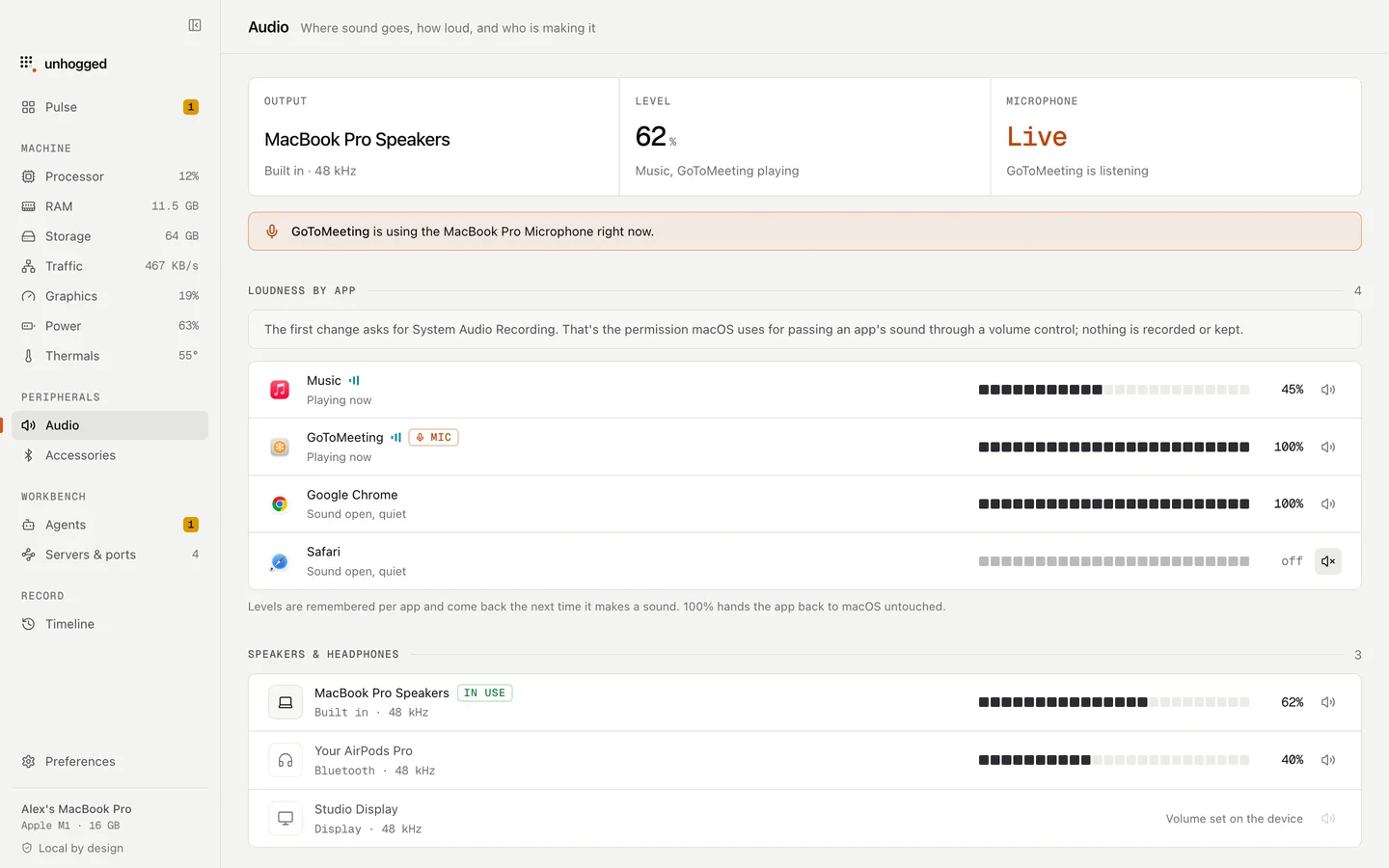
Unhogged's Audio screen shows which app is playing and which is using the microphone right now, with every output and input device, so you can see what's keeping the audio system busy.
One payment, three Macs. macOS 13 Ventura or later on Apple silicon.
Questions
Is it safe to kill coreaudiod?
Yes. macOS restarts it immediately; sound drops out for a moment.